
Every tool, chapter by chapter
What RayBurn Studio 5.3 does, in the order of its own built-in Tutorial. Each line names a tool the way the program names it, so you can find it with the search box.
Drawing and editing
The drawing area is the bed of your machine at its real size. Type exact numbers for position and size, or drag.
- Shapes
- Rectangle, ellipse, triangle, pentagon, polygon and octagon. Hold Shift for a square or a circle. Rounded corners with Radius / Fillet.
- Lines
- Click from point to point; click the first point again to close the shape. Only a closed shape can be filled or cuts a part free.
- Text
- Any installed font, several lines, spacing and alignment. Convert to Curves turns text into outlines so the letters' shapes can be edited.
- Edit Nodes
- Drag a node and the line follows. Drag a box to select every node inside it, then move, nudge or delete them together.
- Combining shapes
- Boolean Union, Subtract and Intersection. The Boolean Assistant shows what each would give, so you choose by looking. Weld joins everything that overlaps or touches and keeps the holes of letters.
- Offset Shapes
- A new outline at an even distance outside or inside the selection: a border, an inlay, a cutting margin.
- Arrays
- Grid / Array in rows and columns, Circular Array round a centre point, Copy Along Path along a line.
- Align and distribute
- Line shapes up by their edges or centres, give three or more equal gaps, make them the same width or height.
- Group and lock
- Group ties shapes together. Lock keeps them from being moved by accident; they are still cut.
- Undo History
- The list of your last changes: click one to go back to that moment. Whatever a tool window does with Apply is one undo step.
- More shaping tools
- Add Tabs leaves small bridges so a part stays in the sheet. Warp and deform, apply a path to text, QR codes and barcodes, measure.
- Looking around
- The mouse wheel zooms at the pointer. Hold the middle button or the space bar and drag to move the view.
- Art Library
- Ready-made designs added with a double-click: 42 Basic Shapes come with the program, and art libraries (.lbart) can be added. A sheet of designs is listed as its separate designs.
- Boundary, Contour and Stencil
- Boundary draws one outline round a whole design, ready to cut it free. Contour adds outlines at a set distance outside or inside. Stencil adds the bridges that keep the islands of letters in a stencil.
- Line Trace
- Lets part of a line go round another shape at a distance, or follow its edge.
- Shape Multiply
- Copies of the selection as one unit: a number of them, or as many as fit on the bed, a sheet or a piece of material, in a neat grid or nested tightly.
- Break Apart and Break Contour
- Break Apart takes groups and text into single shapes and letters to edit one by one. Break Contour cuts an outline into its sides at the corners.
Layers and the job
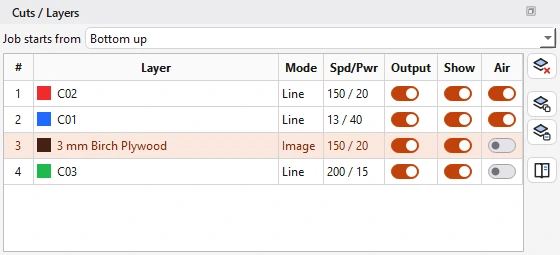
Every colour is a layer with its own mode, speed and power. Layers are cut from the top of the list down.
- Line, Fill, Offset Fill, Image
- Line cuts along the shape. Fill scans its inside. Offset Fill fills with outlines. Image is for pictures.
- Speed and power
- Speed, maximum and minimum power, number of passes; for a Fill layer also the fill interval and the scan angle.
- Output and Show
- Output takes a layer out of the job without deleting it. Show hides it on the screen.
- Material Library
- Your own list of materials with the speed and power that worked. Apply one to the selected layer.
- Material Test
- Draws a grid of squares with rising speed and power, to find the settings for a new material on a piece of scrap.
- Cut order
- Inner shapes are always cut before the shape around them, the layers in the order of your list, and the nearest part next. The job runs top down or bottom up.
- Cut shared lines once
- Where shapes touch, the line between them is cut only once. With Cut selected graphics and Optimize cut path, in Optimization Settings.
- Preview
- Plays the whole job before anything burns: the order, the travel moves and the time it takes. Drag the slider to any moment.
- Check Job
- Looks the job over before it runs: speed limits, room at the edges, cut order, open shapes, objects off the bed. Fix repairs what can be repaired.
- Job History
- Every job that was run: when, how long, with which settings. Search it or save it as a table.
Running the laser
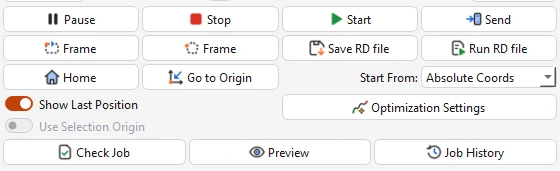
The laser fires only from Start, after a confirmation that reminds you to check the focus. Pause and Stop always work.
Lasers are dangerous. Never leave a running laser unattended.
- Connecting
- Device Settings holds your machine: its controller, the size of its bed, where its origin is, and how it is connected, USB/COM or network.
- Moving the head
- Jog by a set distance or for as long as you hold an arrow. Send the head to exact coordinates, to a click on the bed, or to a saved position.
- Home and origin
- Home sends the head to its home corner. Start From and Job Origin decide where a job is placed.
- Frame
- The head runs round the box of the job with the laser off, to show where it will land. Rubber Band Frame follows an outline pulled tight round the job; Frame continuously keeps going while you shift the material.
- Start
- Sends the job and runs it. You are asked first, every time. A bar at the bottom of the window shows how far the job is and the time left.
- Pause and Stop
- Pause halts the job where it is. Stop ends a job, a frame or a jog at once. Both work even while a tool window is open.
- Send and job files
- On a Ruida controller, Send writes the job into the controller's memory to start at the machine's own panel; Save RD file writes it to a file for a USB stick.
- G-code
- For G-code machines the job is streamed from the computer. Export G-code writes the vector cuts to a file.
The camera and its calibration
The camera looks at the bed at an angle, through a lens that bends the picture. The calibration tells the program which camera pixel is which point of the bed, in millimetres.
- Live overlay
- The bed as the camera sees it, under your design. A slider sets how strongly the picture shows. Update Overlay keeps a still picture instead.
- Calibrate
- Engraves a grid of dots on scrap and finds them with the camera, then tells you how well they fit. A target that is already engraved can be used again without burning.
- Cal check with engraving
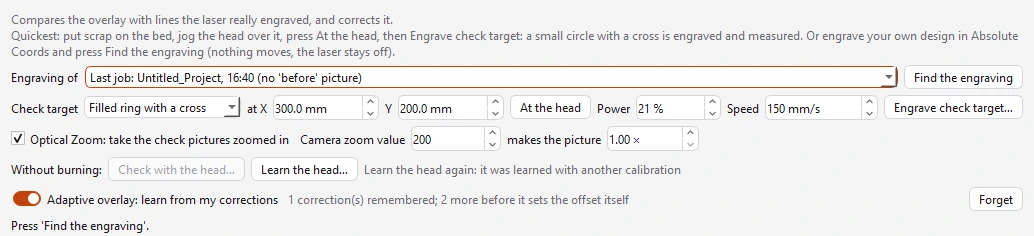
- Compares the overlay with lines the laser really engraved, and corrects it. Quickest with the small check target, engraved where the head stands.
- Check with the head
- A check with nothing burned: the head visits five places it has learned, laser off. It needs three places that agree; otherwise it says it cannot tell.
- Adaptive overlay
- Learns from your corrections and sets the usual offset by itself when the camera has moved. Forget throws away what was learned.
- Picture offset arrows
- Move the picture by hand until the engraved lines sit on the red outline, in steps from 0.05 to 2 mm.
- White stickers
- A camera on the lid sits a little differently each time the lid is closed. Stickers on the machine's fixed frame let the overlay find its place again.
- Questions at startup
- Is the camera fixed in place? Then the saved calibration is simply used. On the lid: has it moved since last time? Nothing moves before you answer.
- Resolution
- Any size with the same proportions as the calibration works with it. A size with other proportions needs its own calibration, and the program says so.
- Camera Settings
- Every setting the camera offers, with its real range; what it lacks is greyed. Changes show in the live picture at once and are kept for each camera.
- Flicker filter
- Off, Automatic or Always on. Automatic works only while bands are there, at any frequency.
- Sharp overlay
- Update Overlay uses the camera's full detail, up to 16 megapixels, drawn over the part of the bed in view. Live overlay detail chooses Full, Balanced or Light for the live picture.
- Optical Zoom
- For a camera with a zoom lens: Ctrl and the mouse wheel zoom the camera itself, and the overlay stays in place at every step. Up to 4K cameras.
- Align to Previous Cut
- Put a sheet back on the bed after a cut that did not go through: the camera finds the old cut or engraving and moves the design onto it for more passes.
- Lock focus
- Sweeps the camera's focus and locks it where the picture is sharpest, so the overlay stays where it is.
Pictures
A picture comes in as it is. The layer's settings decide how it is burned.
- Import
- PNG, JPG, BMP and other pictures, besides SVG, DXF and HPGL drawings. Imports land in the centre of the bed.
- Adjust Image
- Brightness, contrast and the dot pattern of the picture, with a preview of the dots the laser will burn. Threshold, several dithers, halftone, sketch and grayscale.
- Convert to Bitmap
- Applies the dithering and shows the result on the page.
- Remove Background
- Automatic, or by a colour you click. Parts that became transparent are never burned.
- Vectorize Image
- A picture rebuilt as clean vector shapes, as an outline or in flat colours, with a layer per colour. Colours can be merged before the shapes are made.
- Trace Image
- Follows the edges of the dark areas and gives you lines to cut or engrave. Quick for a logo in black and white.
- Mask and crop
- Apply Mask shows a picture only inside a shape. Crop cuts it to a shape or to a size in millimetres.
Production tools
For batches, signs and boxes: the tools that save the most time at the machine.
- Fit to Material
- Finds the piece of material on the bed with the camera and puts the design on it: centred, scaled to fit, with offsets for a precise centre.
- Repeat on Parts
- The same job on one part after another, or on all the parts on the bed at once. The camera finds each part, wherever and however it lies.
- Lead-in / Lead-out Lines
- Start and end each closed cut in the waste, for a clean edge: a straight line or an arc, outside a part and inside a hole.
- Widen Letters
- Thin letters and strokes made thick enough that they do not melt or burn away in the cut: only the thin strokes, or the whole letter.
- Nesting
- Packs the shapes tightly by their real outlines to save material. Parts that do not fit stay where they were.
- Box Maker
- The parts of a laser-cut box with finger joints: basic, hinged lid, dividers, drawers, sliding lid, parts bin, polygon or curved.
- Gear Maker
- Spur gears from the number of teeth and the module, with a centre hole, spokes and a matching gear that meshes with it.
- Puzzle Generator
- A jigsaw of any size: rows and columns or a piece size, the shape of the tabs, a random pattern, rounded corners and the border.
- Barcode Generator
- QR, Data Matrix, Code 128, Code 39, EAN-13 and UPC-A from text, a web address, Wi-Fi details, a contact card, an e-mail or a phone number, with a frame or a plate.
- Block of Text
- Lines of text stretched to one width and welded into one piece. A + or - at the end of a line makes that line taller or lower.
- Detect Shapes on Sheet
- Finds the drawings, pictures and text on a sheet and draws a cut boundary around each. Join, Cut and Separate change the boundaries.
- Center Finder
- Touch three points on the edge of a round piece with the head and its exact centre is found.
- Print Proof
- One page with the design, its size and its layer settings, to show a customer or to file.
Files, help, assistant
Your design is saved by itself every few seconds and recovered at the next start.
- Projects
- A .rbs project keeps the design with its layers, settings and notes.
- Export
- An SVG drawing, G-code, or an RD job file.
- Tutorial and Welcome Tour
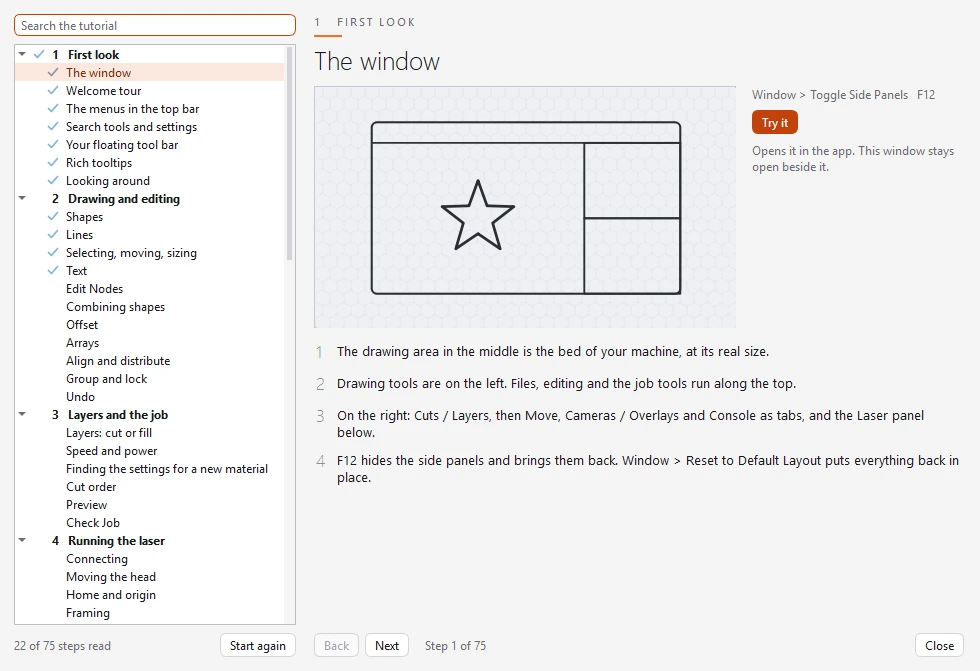
- Every feature step by step, with a moving picture and a button to try it, including a chapter on aligning the laser's mirrors. The Welcome Tour shows each area of the window at the first start.
- Rich tooltips
- On the tool bars, in the menus and on the buttons of the panels. One switch turns the animations off, another every tooltip.
- Search
- Type a few letters of any tool, command or setting and press Enter to run the first one found.
- Floating Tool Bar
- Your own small bar of tool shortcuts that floats over the drawing. It can also stand upright.
- AI Assistant
- Ask in plain words about the machine, the camera, a setting or a cut that went wrong. It looks at the machine's status, the calibration, your design and the log, and answers for your setup. Ask it for a drawing and add it with one click.
- Themes
- Light, Dark, Pink, Green and Purple, and several icon styles. One shortcut switches between dark and light.
- Fast with big designs
- Thousands of shapes move, zoom and select without a pause, and the job is made ready in the background, so Start answers at once.
- Language
- English and Arabic. Arabic is laid out from right to left.
- Quick Help
- F1 opens every keyboard shortcut on one page.